New iPhone? Change These 5 Settings Immediately for Better Security
Got a new iPhone? Change these five essential settings to boost security, protect your data, and improve battery life. Follow these simple steps to make your device safer and run more efficiently.
15
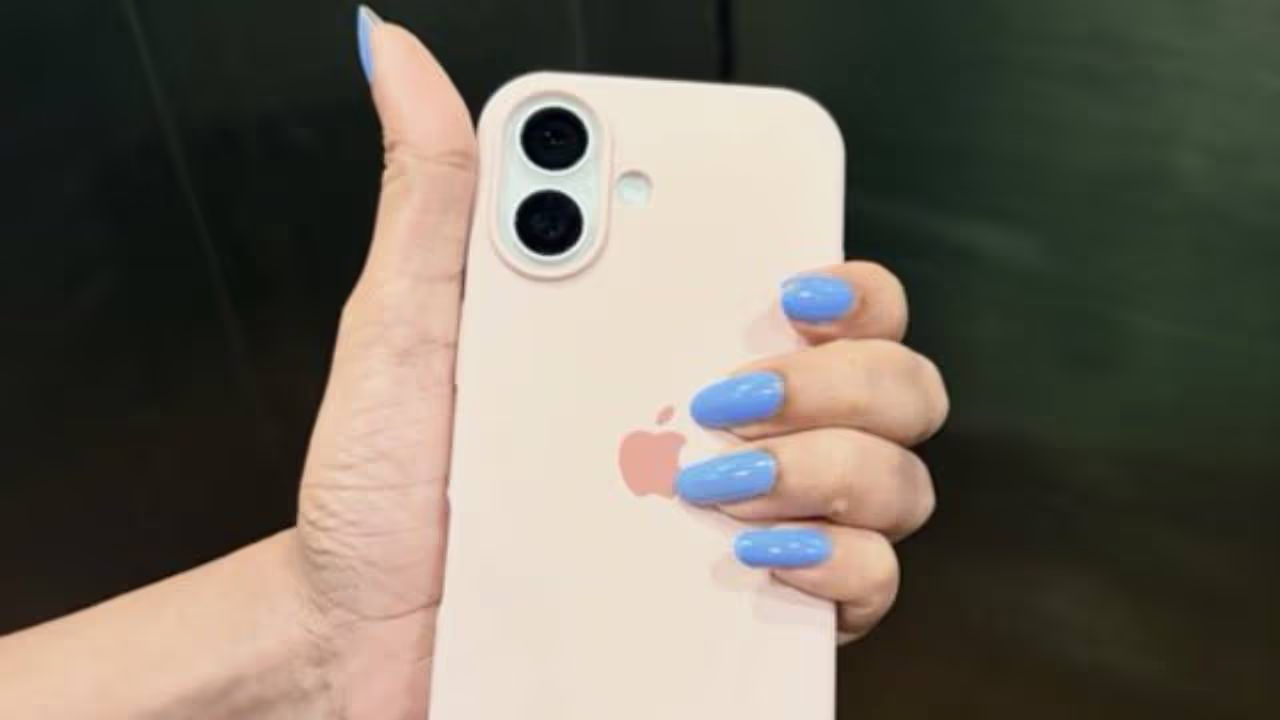
Image Credit : social media
1. The Secret Feature in Face ID! (Attention Awareness)
Everyone knows your phone unlocks with your face. But what if someone unlocks it while you're asleep or looking away? Apple has a fix for this. Go to Settings -> Face ID & Passcode and turn on 'Require Attention for Face ID'. Now, your phone will only unlock when your eyes are looking directly at the screen.
Add Asianet Newsable as a Preferred Source
25

Image Credit : Apple Hub/X
2. The 'Find My' Magic to Find a Lost Phone!
Losing a phone you spent thousands on is a nightmare, right? The 'Find My' feature is a must-have to avoid this. It helps you track your phone's exact location and even lets you remotely erase your data if needed. To switch it on, go to Settings -> Your Name (Apple ID) -> Find My, and turn on 'Find My iPhone' immediately.
35
Image Credit : Google
3. Super Trick to Extend Battery Life! (Optimised Battery Charging)
The biggest headache for iPhone users is its battery. To stop your battery health from dropping quickly, Apple provides a great feature. It learns your charging habits and ensures the phone charges above 80% only when you need it. Just go to Settings -> Battery -> Battery Health & Charging and select the 'Optimised Battery Charging' option.
45
Image Credit : Google
4. iCloud Backup to Protect Your Memories!
What happens to your important messages, photos, and app data if your phone gets damaged or lost? To avoid this stress, you must activate the automatic backup feature. It backs up your data whenever your iPhone connects to Wi-Fi. To do this, go to Settings -> Your Name -> iCloud and turn on 'iCloud Backup'.
55
Image Credit : Getty
5. The 2FA Shield to Escape from Hackers! (Two-Factor Authentication)
In today's digital world, just a password is not enough for security. With Two-Factor Authentication (2FA), no one can log into your account even if they know your Apple ID password. This is because 2FA sends a unique secret code only to your mobile. To set it up, go to Settings -> Your Name -> Sign-In & Security and activate 'Two-Factor Authentication' right away.
Find the latest Technology News covering Smartphone Updates, AI (Artificial Intelligence) breakthroughs, and innovations in Space exploration. Stay updated on gadgets, apps, and digital trends with expert reviews, product comparisons, and tech insights. Download the Asianet News Official App for everything shaping the future of technology.
Latest Videos